
PROCESSES · STOCK ACCURACY
Cycle Counts
Open a count, release it to the floor and count with the handheld; Picklo shows the variances and lets you recount them.

STEP BY STEP
What happens in the warehouse, and what Picklo does

Step 1: Open a count
In the panel, “+ New count” opens a count from shelves (by shelf code prefixes) or from items (by SKU list). You can limit it to shelves that are due.
Step 2: Choose a blind count
In a blind count the counter does not see the system quantity. The point is to stop the counter from matching the number on screen.
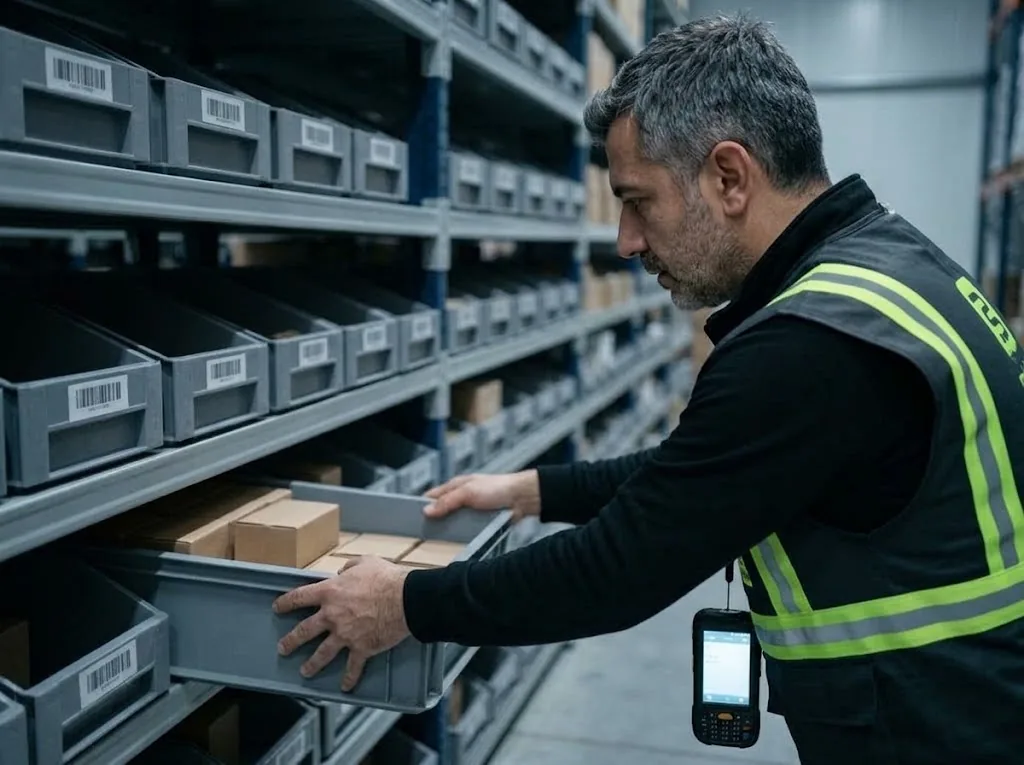
Step 3: Release it, count it
“Release to floor” sends the count to the handheld. The counter opens it and sees the shelf code, item and SKU, then enters the quantity with ready buttons (0, 1, 2, 5, 10) or by hand. Zero for an empty shelf is always one tap.
Step 4: Recount the variances
The panel shows each line's counted quantity and variance. Lines with a variance go to a new count with “Recount”.
HANDHELD · COUNT
A big shelf code, a one-tap quantity.
The counter walks to the shelf first; the shelf code is the most prominent thing on screen. In a blind count the expected quantity is never shown.
- Ready numbers: 0 · 1 · 2 · 5 · 10
- Any other quantity by hand
- Saving a count needs a connection
PANEL · COUNTS
Lines with a variance stand out.
The Counts screen shows each count's status, counted lines and variance. Statuses: Not released, Counting, Closed.
WHAT YOU GAIN
What Picklo gives you in this process
- Count without stopping the warehouseOnly the shelves or items you choose are counted.
- Numbers aren't copied from the screenIn a blind count the counter does not see the expected quantity.
- Variances don't disappearLines with a variance go to a recount.
OTHER PROCESSES
The rest of your warehouse
GET STARTED
Ready to digitize your
warehouse operations?
Digitize your e-commerce and retail operations with Picklo and grow faster.