
PROCESSES · STOCK ACCURACY
Warehouse Transfers
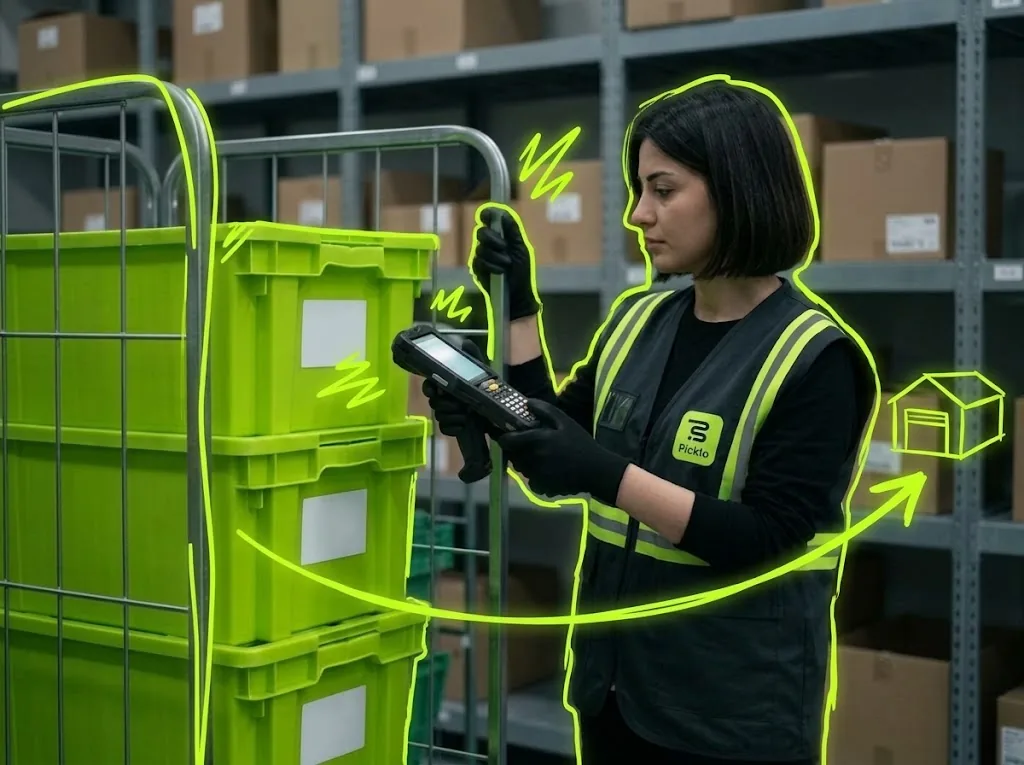
Move goods between warehouses; goods on the road never vanish, and every line shows how much is in transit.
STEP BY STEP
What happens in the warehouse, and what Picklo does
Step 1: Open the transfer
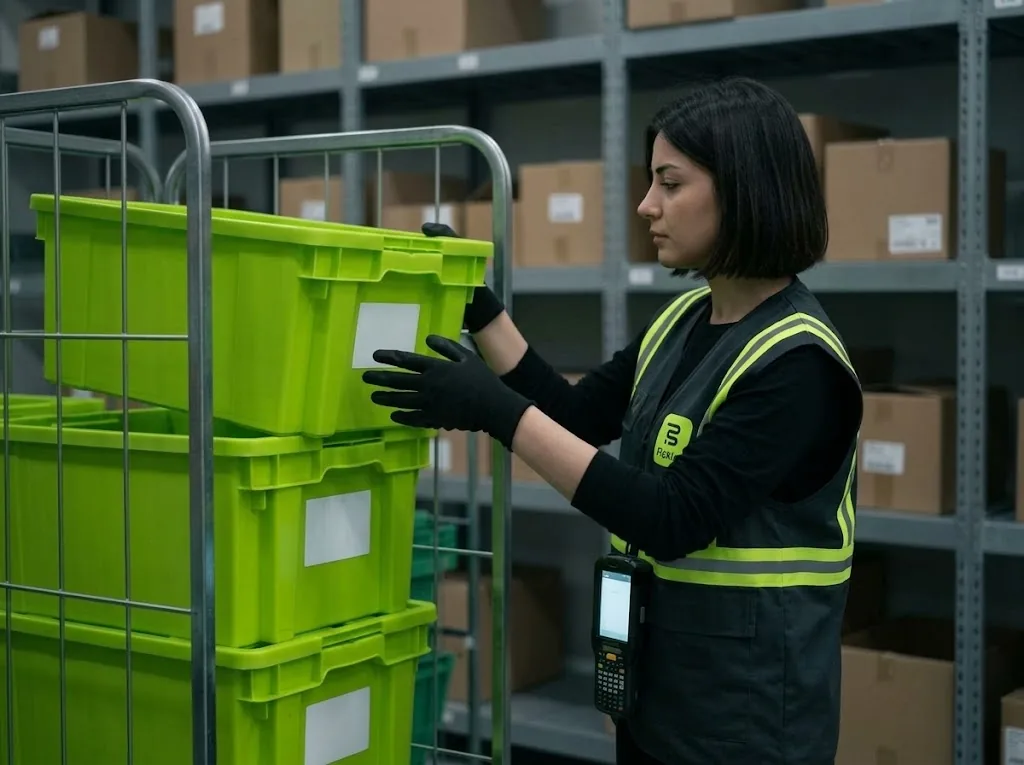
With “New transfer” in the panel you choose the source and destination warehouses, give a document code and add items line by line with quantities. The transfer opens as a draft.
Step 2: Ship it
At the source warehouse, goods leave their source shelf with “Ship”. The shipped quantity shows as in transit and the transfer moves to “In transit”.
Step 3: Receive it
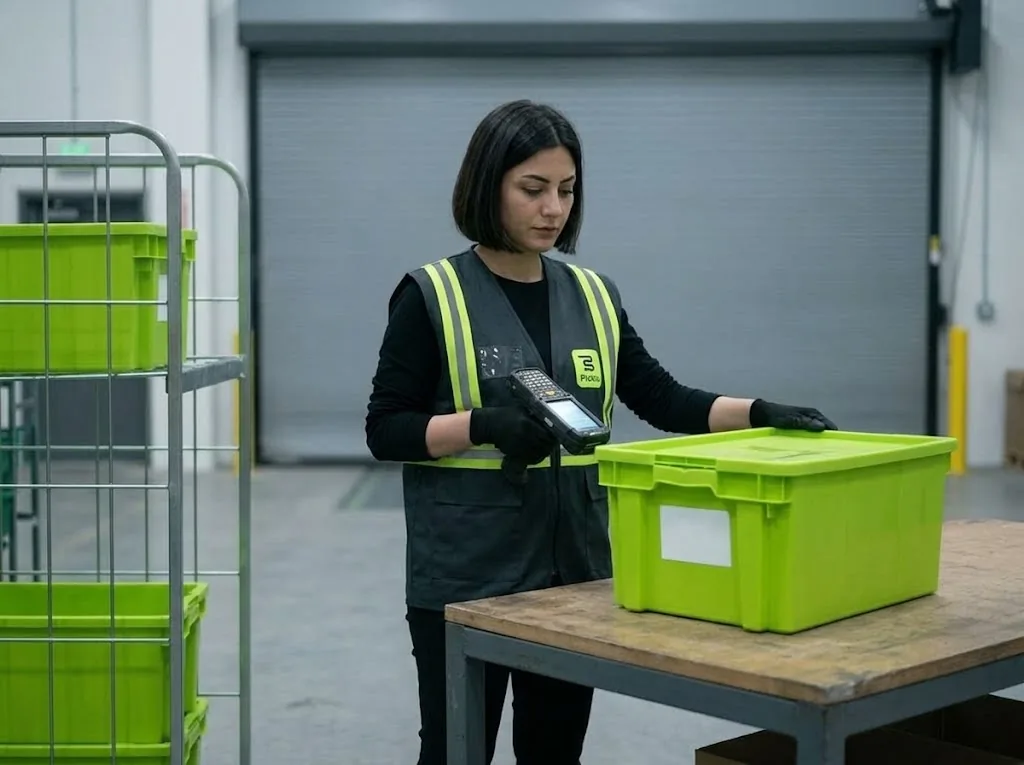
At the destination, arriving goods go onto the destination shelf with “Receive”. Every line keeps requested, in-transit and received quantities separately.
Step 4: Record what's missing
A quantity lost on the way is closed with “Write off” and a reason. Once a transfer is completed or cancelled, no further movement is possible.
PANEL · WAREHOUSE TRANSFERS
Stock in transit never vanishes.
A transfer opens as a draft, shows as in transit once shipped and completes when the other warehouse receives it. Shipped and received units are kept per line.
- Statuses: Draft, In transit, Completed, Cancelled
- Ship and receive line by line
- Losses are written off with a reason
SEVERAL WAREHOUSES
Each warehouse keeps its own stock.
Each warehouse has its own locations and stock. A transfer records which warehouse the goods left and which they entered.
WHAT YOU GAIN
What Picklo gives you in this process
- Goods on the road are visibleEvery line shows how much is in transit.
- Differences are recordedMissing quantities are written off with a reason.
- Warehouses don't mixGoods leave a source shelf and enter a destination shelf.
OTHER PROCESSES
The rest of your warehouse
GET STARTED
Ready to digitize your
warehouse operations?
Digitize your e-commerce and retail operations with Picklo and grow faster.