
PROCESSES · INBOUND
Receiving
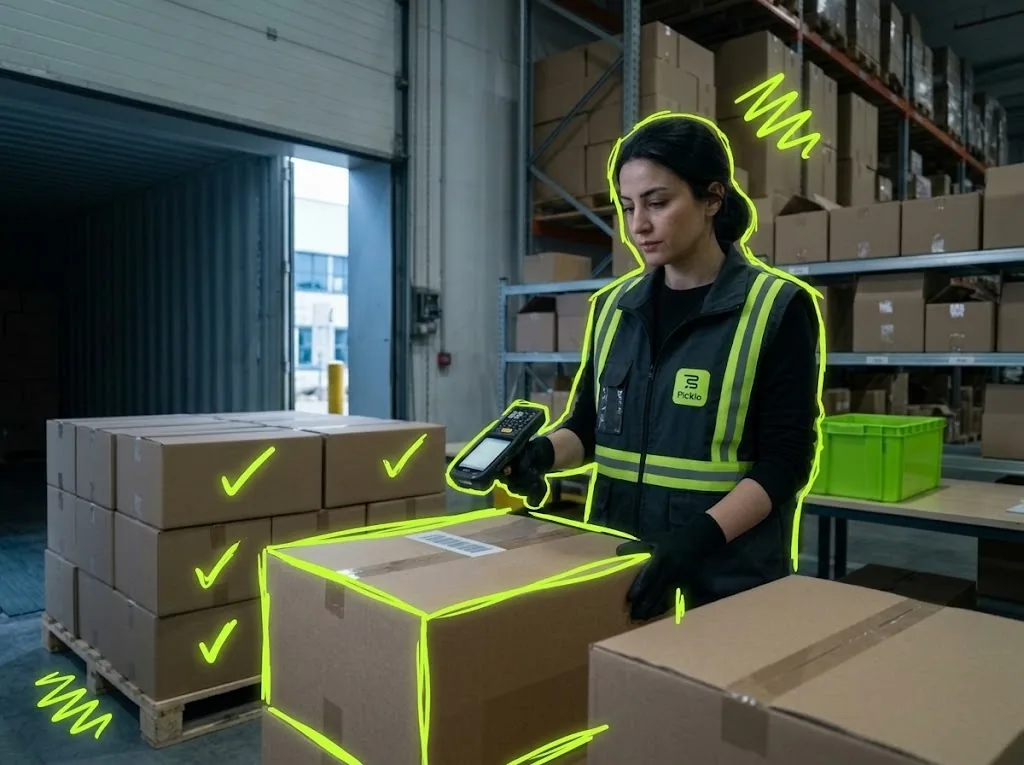
Count incoming goods and put them on a shelf; Picklo checks every unit against the expected order.
STEP BY STEP
What happens in the warehouse, and what Picklo does
Step 1: Open the expected order
Incoming goods are first created as a purchase order in the panel; goods can only be received against an open order. The handheld's Receiving screen lists that warehouse's open orders with received and rejected counts.
Step 2: Scan the shelf, count the items
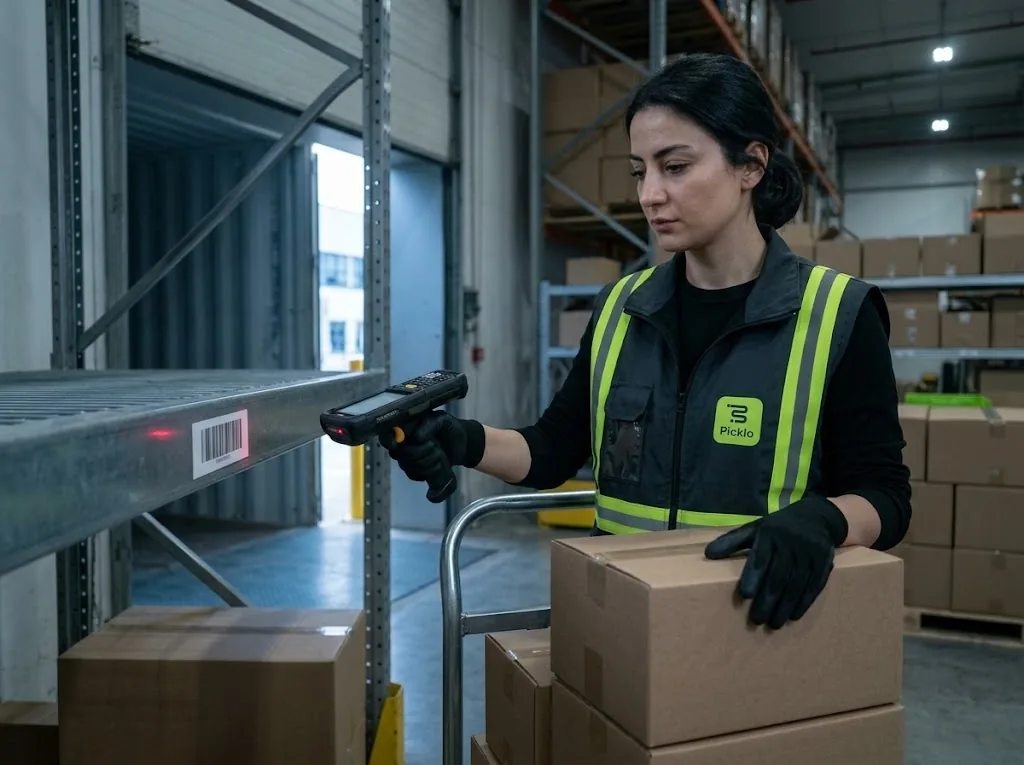
The worker scans the destination shelf first, then each item; every scan adds one. A case barcode counts the whole case in one scan. Items that are not on the order are flagged and not counted; a “+1 manual” button covers unreadable labels.
Step 3: Scan the shelf again, stock is written
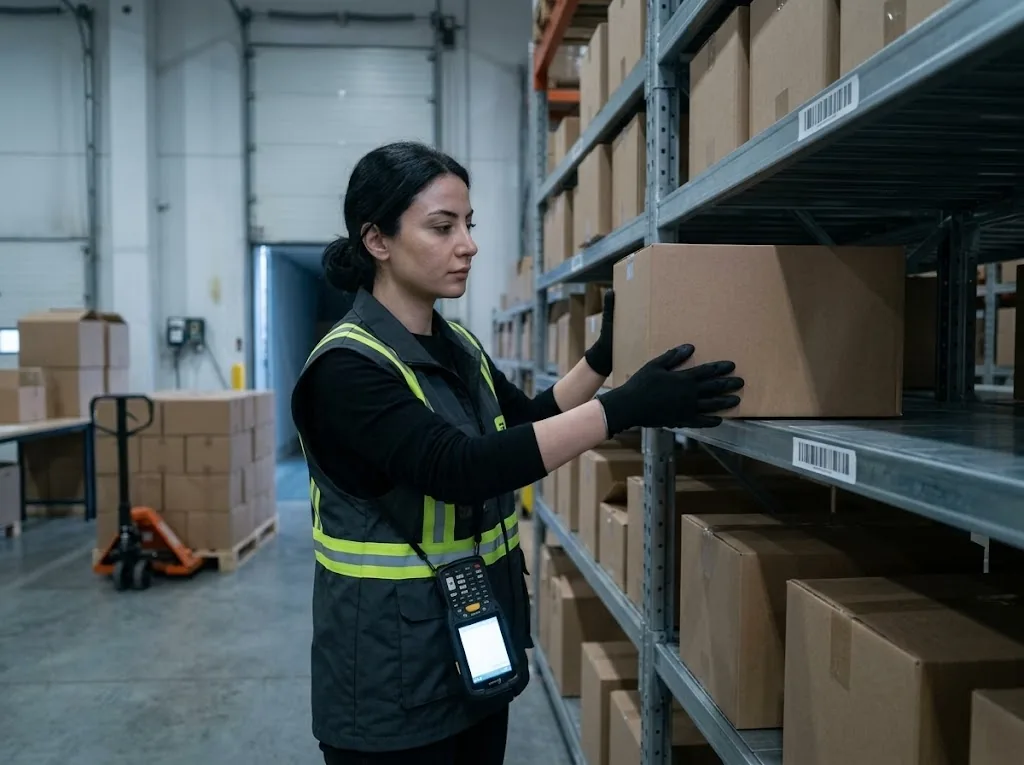
The same shelf is scanned once more to finish. Picklo also checks on the server that the barcode is a shelf in this warehouse; inactive shelves and totes are refused. Received units are added to that shelf's stock immediately and the receiver is recorded.
Step 4: Set damage aside, pick the lot
In the panel you enter the rejected quantity, a fixed reason (Damaged, Dirty, Wrong item, Expired, Other) and a quarantine shelf; rejected units are not added to sellable stock. For lot-tracked items the worker picks an existing lot or opens a new one with a lot number and expiry date.
HANDHELD · RECEIVING
Shelf, items, shelf: received in three scans.
The handheld tells the order itself: shelf first, then items, then the same shelf again. The counter moves with every scan; when receiving ends the screen shows how many units went onto the shelf.
- A case barcode counts the whole case
- Items not on the order are not counted
- A warehouse setting can block receiving without a barcode
PANEL · RECEIVING
Expected, received and rejected on every line.
Each purchase order line shows how much arrived, how much is still expected and how much was rejected. Over-receipts are not blocked; the surplus is shown on the order.
- Statuses: Draft, Pending, Receiving, Closed
- Rejected goods sit on a quarantine shelf as non-sellable
- A supervisor closes the order
WHAT YOU GAIN
What Picklo gives you in this process
- Goods land on the right shelfThe shelf is scanned twice and also verified on the server.
- Damaged goods never go on saleRejected units stay on a quarantine shelf as non-sellable stock.
- Every order line is reconciledEach line shows expected, over-received and rejected units.
OTHER PROCESSES
The rest of your warehouse
GET STARTED
Ready to digitize your
warehouse operations?
Digitize your e-commerce and retail operations with Picklo and grow faster.